Mac Printer Not Working? Complete Fix Guide

Troubleshooting for macOS Sonoma, Ventura, Monterey - All Printer Brands

Updated for 2026 by TestMyPrinter Team
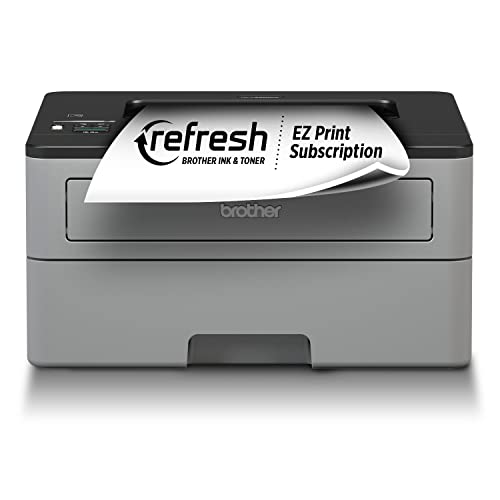
Brother Compact Monochrome Laser Printer, HL-L2350DW, Wireless Printing, Duplex Two-Sided Printing, Includes 4 Month Refresh Subscription Trial and Amazon Dash Replenishment Ready

Fix printer offline, connection issues, driver problems, AirPrint, and more

Table of Contents

Quick Fix - Try This First

This resolves most Mac printer issues in under 5 minutes

  1. 1
    Check Basic Connection

    Make sure your printer is turned on and connected to the same WiFi network as your Mac. For USB printers, verify the cable is securely connected.

  2. 2
    Restart Everything

    Turn off your printer, wait 30 seconds, turn it back on. Restart your Mac. This clears temporary issues.

  3. 3
    Remove and Re-Add Printer

    Go to System Settings → Printers & Scanners → Click your printer → Click the - button to remove it → Click + to add it back

    This fixes 60% of Mac printer issues!

  4. 4
    Clear Print Queue

    In Printers & Scanners, click your printer → Open Print Queue → Cancel all stuck jobs

Still not working? Continue to detailed solutions below:

Understanding macOS Printer Compatibility

macOS handles printing differently than Windows. Understanding these differences helps you troubleshoot effectively.

How Mac Printing Works

  • CUPS (Common Unix Printing System)

    macOS uses CUPS to manage all printing. It's the foundation of Mac printing.

  • AirPrint First

    macOS prefers AirPrint (driverless printing) over manufacturer drivers when available.

  • Built-in Drivers

    macOS includes drivers for many printers, but they may not support all features.

  • Security Requirements

    Recent macOS versions require signed drivers and may block older software.

Common Compatibility Issues

  • macOS Updates Break Printing

    Major updates (Sonoma, Ventura) can make older drivers incompatible.

  • Older Printers (Pre-2015)

    Very old printers may not have Apple Silicon or recent macOS drivers.

  • 32-bit Drivers Unsupported

    macOS Catalina and later don't support 32-bit drivers at all.

  • Network Discovery Issues

    Bonjour (Apple's network protocol) may not find some printers.

Best Practice for Mac Compatibility

For best results on Mac:

  1. 1. Use AirPrint if your printer supports it (most reliable)
  2. 2. Download Mac-specific drivers from manufacturer website (not the Windows version)
  3. 3. Check for Apple Silicon (M1/M2/M3) compatible drivers if you have a newer Mac
  4. 4. Keep your printer firmware updated
  5. 5. Before upgrading macOS, check if your printer is compatible with the new version

Fix: Printer Not Showing Up on Mac

If your printer doesn't appear when you try to add it, follow these steps:

1 Verify Printer is On and Connected

  1. 1. Check that your printer is powered on and ready (not showing errors)
  2. 2. For wireless printers: Print a network configuration page to verify WiFi connection
  3. 3. Confirm the printer is on the same WiFi network as your Mac (not a guest network)
  4. 4. For USB printers: Try a different USB port or cable
  5. 5. Wait 1-2 minutes after turning on the printer before trying to add it

2 Add Printer Manually by IP Address

  1. 1. Get your printer's IP address from its network configuration page
  2. 2. Open System SettingsPrinters & Scanners
  3. 3. Click the + button to add a printer
  4. 4. Click the IP tab at the top
  5. 5. Enter the printer's IP address (e.g., 192.168.1.100)
  6. 6. For Protocol, select AirPrint or HP Jetdirect - Socket
  7. 7. macOS should automatically detect the printer model
  8. 8. Click Add

Tip: If AirPrint doesn't work, try "HP Jetdirect - Socket" protocol - it works for most network printers.

3 Check Firewall Settings

  1. 1. Open System SettingsNetworkFirewall
  2. 2. If Firewall is on, click Options
  3. 3. Make sure "Block all incoming connections" is NOT checked
  4. 4. Look for printer-related apps and ensure they're allowed
  5. 5. Try temporarily disabling the firewall to test if it's blocking printer discovery

4 Install Manufacturer Software

  1. 1. Visit your printer manufacturer's website (HP, Canon, Epson, Brother)
  2. 2. Download the full driver package for macOS (specify your macOS version)
  3. 3. For Apple Silicon Macs (M1/M2/M3), make sure to get the ARM64 compatible driver
  4. 4. Install the driver and restart your Mac
  5. 5. The manufacturer software often includes better printer discovery tools

Fix: Printer Offline on Mac

1 Resume Printer in CUPS

  1. 1. Open Safari or any web browser
  2. 2. Go to: http://localhost:631
  3. 3. Click the Printers tab
  4. 4. Find your printer in the list
  5. 5. If it shows "Paused" or "Stopped", click the dropdown menu next to it
  6. 6. Select Resume Printer
  7. 7. Enter your Mac admin password when prompted

2 Use Terminal Commands

  1. 1. Open Terminal (Applications → Utilities → Terminal)
  2. 2. Check printer status:
    lpstat -p
  3. 3. Note your printer's name from the output
  4. 4. Enable the printer (replace "PrinterName" with your actual printer name):
    cupsenable PrinterName
  5. 5. Set it to accept jobs:
    cupsaccept PrinterName

3 Check Network Connection

  1. 1. Verify your Mac and printer are on the same WiFi network
  2. 2. Open Terminal and ping the printer's IP address:
    ping 192.168.1.xxx
  3. 3. If you get replies, the connection is working
  4. 4. If "Request timeout", restart your router and printer
  5. 5. Consider assigning a static IP to prevent the printer's IP from changing

Fix: Print Jobs Stuck in Queue

Method 1: Clear from Print Queue

  1. 1. Open System SettingsPrinters & Scanners
  2. 2. Click your printer
  3. 3. Click Open Print Queue
  4. 4. Select the stuck job
  5. 5. Click the X button to cancel it
  6. 6. If it won't cancel, click the printer icon in the menu bar → select your printer → click Stop Jobs

Method 2: Terminal Force Clear

  1. 1. Open Terminal
  2. 2. Cancel all jobs:
    cancel -a
  3. 3. If that doesn't work, restart CUPS:
    sudo launchctl stop org.cups.cupsd
    sudo launchctl start org.cups.cupsd
  4. 4. Enter your admin password

Advanced: Clear Print Queue Files

If jobs are still stuck after the above methods:

  1. 1. Open Terminal and stop CUPS:
    sudo launchctl stop org.cups.cupsd
  2. 2. Delete all print job files:
    sudo rm -rf /var/spool/cups/*
  3. 3. Restart CUPS:
    sudo launchctl start org.cups.cupsd
  4. 4. Try printing again

Fix: AirPrint Not Working on Mac

AirPrint is Apple's wireless printing technology. When it works, it's the most reliable way to print on Mac. Here's how to fix it:

Step 1: Verify AirPrint Support

  1. 1. Check if your printer supports AirPrint:
  2. 2. If your printer doesn't support AirPrint natively, you may need manufacturer drivers
  3. 3. Some older printers got AirPrint via firmware updates - check for updates

Step 2: Network Requirements

Required:

  • ✅ Mac and printer on same WiFi network
  • ✅ Both on standard network (not guest network)
  • ✅ WiFi router with Bonjour support
  • ✅ Router allowing multicast/broadcast traffic

Problematic:

  • ❌ VPN connections active on Mac
  • ❌ Mac connected via Ethernet, printer on WiFi
  • ❌ AP Isolation enabled on router
  • ❌ Enterprise WiFi with device isolation

Step 3: Troubleshooting Steps

  1. 1. Restart your printer, router, and Mac (in that order)
  2. 2. Disable any VPN connections on your Mac
  3. 3. Remove the printer from Printers & Scanners and re-add it
  4. 4. When re-adding, look for the printer in the "Default" section (these are AirPrint printers)
  5. 5. Update your printer's firmware from the manufacturer's website
  6. 6. Check router settings for "AP Isolation" or "Client Isolation" and disable it
  7. 7. Make sure your router's firmware is up to date

Step 4: Force AirPrint Discovery

  1. 1. Open Terminal
  2. 2. Restart mDNSResponder (handles Bonjour/AirPrint discovery):
    sudo killall -HUP mDNSResponder
  3. 3. Wait 30 seconds, then try adding the printer again
  4. 4. If still not appearing, try adding by IP address using the AirPrint protocol

Fix: Driver Issues on macOS Sonoma/Ventura

Important: macOS Sonoma/Ventura Driver Changes

macOS Sonoma and Ventura introduced stricter driver requirements:

  • • Drivers must be signed by Apple-verified developers
  • • 32-bit drivers are completely unsupported
  • • Older printer models may no longer work without manufacturer updates
  • • Apple Silicon Macs (M1/M2/M3) require ARM64-compatible drivers

Download the Correct Driver

  1. 1. Identify your exact printer model number
  2. 2. Go to your printer manufacturer's website:
    • HP: hp.com/support
    • Canon: canon.com/support
    • Epson: epson.com/support
    • Brother: brother-usa.com/support
  3. 3. Select your printer model and macOS as the operating system
  4. 4. Choose your specific macOS version (Sonoma 14.x, Ventura 13.x, Monterey 12.x)
  5. 5. If you have an Apple Silicon Mac (M1/M2/M3), look for "Apple Silicon" or "Universal" drivers
  6. 6. Download the full driver package (not just the basic driver)

Install the Driver Properly

  1. 1. Close all applications
  2. 2. Remove any existing printer software:
    • • Check Applications folder for manufacturer apps and drag to Trash
    • • Remove the printer from System Settings → Printers & Scanners
  3. 3. Run the downloaded driver installer (.pkg or .dmg file)
  4. 4. Follow the installation wizard
  5. 5. If macOS shows a security warning:
    • • Go to System Settings → Privacy & Security
    • • Scroll down to find the blocked software message
    • • Click "Allow" or "Open Anyway"
    • • Re-run the installer
  6. 6. Restart your Mac after installation
  7. 7. Add your printer in Printers & Scanners

If No Compatible Driver Exists

If your printer manufacturer hasn't released a compatible driver for your macOS version:

  1. 1. Try using AirPrint instead (if your printer supports it)
  2. 2. Use the generic PostScript driver:
    • • When adding printer, select "Generic PostScript Printer" from the driver list
    • • This provides basic printing but may not support all features
  3. 3. Try Gutenprint drivers (open-source):
    • • Download from gutenprint.sourceforge.net
    • • Supports many older printer models
  4. 4. Consider upgrading to a newer printer with better Mac support

Fix: Wireless Printer Not Connecting

Step 1: Verify WiFi Connection

  1. 1. On your printer's control panel, access WiFi or Network settings
  2. 2. Print a Network Configuration Page or Wireless Network Test Report
  3. 3. Verify:
    • • WiFi status shows "Connected"
    • • SSID (network name) matches your Mac's WiFi network
    • • Signal strength is Good or Excellent
    • • IP address is assigned (e.g., 192.168.1.100)

Step 2: Reconnect Printer to WiFi

Method A: WPS (Easiest)

  1. 1. Press WPS button on your router
  2. 2. Within 2 minutes, press WPS button on printer
  3. 3. Wait for WiFi light to stop blinking
  4. 4. Connection established

Method B: Manual Setup

  1. 1. On printer, go to WiFi Setup Wizard
  2. 2. Select your WiFi network from the list
  3. 3. Enter WiFi password carefully
  4. 4. Wait for connection confirmation

Step 3: Test Network Connectivity

  1. 1. Get printer's IP address from the network config page
  2. 2. On your Mac, open Terminal
  3. 3. Ping the printer:
    ping 192.168.1.xxx
  4. 4. If you get replies, connection is good
  5. 5. If "Request timeout", the printer isn't reachable:
    • • Restart your router
    • • Move printer closer to router
    • • Check for WiFi interference

Step 4: Optimize WiFi Settings

  • Use 2.4GHz WiFi, not 5GHz

    Most printers work better on 2.4GHz due to better range. Check your router settings.

  • Assign a Static IP Address

    Prevents connection issues when the printer's IP changes. Configure in router DHCP settings.

  • Disable AP Isolation

    In router settings, make sure "AP Isolation" or "Client Isolation" is disabled.

  • Update Router Firmware

    Outdated router firmware can cause printer connectivity issues.

Fix: USB Printer Not Recognized on Mac

Physical Connection Checks

  • Try different USB ports

    Try all available ports on your Mac

  • Replace USB cable

    Use a high-quality USB cable (preferably printer's original)

  • Avoid USB hubs

    Connect directly to Mac, not through a hub

  • Power cycle printer

    Turn off, unplug for 30 seconds, plug back in

  • For USB-C Macs

    Use a quality USB-C to USB-B adapter or cable

Check System Information

  1. 1. Click Apple menu → About This Mac
  2. 2. Click System Report (or More Info → System Report)
  3. 3. In the left sidebar, under Hardware, click USB
  4. 4. Look for your printer in the USB Device Tree
  5. 5. If it appears, the connection is good but driver may be missing
  6. 6. If it doesn't appear, try different cable/port

Install USB Printer Driver

  1. 1. Even for USB printers, you may need to download drivers from manufacturer website
  2. 2. After installing driver, restart your Mac
  3. 3. Go to System Settings → Printers & Scanners
  4. 4. Your printer should appear automatically
  5. 5. If not, click + to add it manually - it should appear in the Default section

Reset USB System (Advanced)

If USB printer still not recognized:

  1. 1. Shut down your Mac completely
  2. 2. Reset the SMC (System Management Controller):
    • Intel Macs: Shut down, hold Shift+Control+Option+Power for 10 seconds, release, turn on
    • M1/M2/M3 Macs: Shut down, wait 30 seconds, turn on (SMC resets automatically)
  3. 3. Reset NVRAM/PRAM: Restart, immediately hold Command+Option+P+R until you hear startup sound twice
  4. 4. Try connecting the printer again

Fix: Print Quality Issues on Mac

If your printer works but output quality is poor, try these solutions:

Faded or Light Prints

  • ✓ Check ink/toner levels in printer settings
  • ✓ Run printer's cleaning cycle (in printer utility app)
  • ✓ Check print quality settings - set to "Best" or "High"
  • ✓ Print a test page directly from printer to verify hardware
  • ✓ Replace low ink cartridges

Streaks or Lines

  • ✓ Run printhead cleaning utility
  • ✓ Run printhead alignment
  • ✓ Print a nozzle check pattern
  • ✓ For laser printers, clean the drum
  • ✓ Replace old or dried-out ink cartridges

Wrong Colors

  • ✓ Check color profile in print dialog
  • ✓ Use "Color Matching" → "Vendor Matching" in print settings
  • ✓ Run color calibration from printer utility
  • ✓ Make sure all color cartridges have ink
  • ✓ Clean printheads

Blurry or Smudged

  • ✓ Run printhead alignment utility
  • ✓ Check that you're using the correct paper type setting
  • ✓ Let inkjet prints dry before handling
  • ✓ Clean the printer rollers
  • ✓ Use printer-recommended paper

Access Printer Maintenance Tools

To access cleaning and alignment utilities:

  1. Method 1: Open your printer manufacturer's utility app (HP Smart, Canon IJ Printer Utility, Epson Printer Utility, etc.)
  2. Method 2: System Settings → Printers & Scanners → Click your printer → Options & Supplies → Utility tab
  3. Method 3: Access printer's web interface by entering its IP address in a browser

How to Reset the Printing System on Mac

Resetting the printing system removes all printers and print jobs, giving you a fresh start. This is the nuclear option but often fixes stubborn issues.

Warning: This Removes All Printers

Resetting the printing system will:

  • • Remove all configured printers
  • • Delete all pending print jobs
  • • Reset all printer preferences
  • • Clear CUPS configuration
  • • You'll need to re-add all printers afterward

Method 1: Using System Settings (macOS Ventura & Sonoma)

  1. 1. Open System Settings
  2. 2. Click Printers & Scanners in the left sidebar
  3. 3. Right-click anywhere in the printer list on the left (where printers are listed)
  4. 4. Select "Reset printing system..." from the menu
  5. 5. A warning dialog will appear - click Reset to confirm
  6. 6. Enter your Mac admin username and password
  7. 7. Wait for the reset to complete (all printers will disappear)
  8. 8. Click the + button to start adding printers again

Tip: If right-clicking doesn't show the option, try Control+clicking or two-finger clicking on the printer list area.

Method 2: Using System Preferences (macOS Monterey & Earlier)

  1. 1. Open System Preferences
  2. 2. Click Printers & Scanners
  3. 3. Right-click in the printer list on the left
  4. 4. Select "Reset printing system..."
  5. 5. Confirm and enter your admin password

Method 3: Using Terminal (All macOS Versions)

If the GUI method doesn't work, use Terminal:

  1. 1. Open Terminal (Applications → Utilities → Terminal)
  2. 2. Run this command to stop CUPS:
    sudo launchctl stop org.cups.cupsd
  3. 3. Remove all printer configurations:
    sudo rm -rf /etc/cups/printers.conf
    sudo rm -rf /etc/cups/ppd/*
  4. 4. Remove print queue files:
    sudo rm -rf /var/spool/cups/*
  5. 5. Restart CUPS:
    sudo launchctl start org.cups.cupsd
  6. 6. Restart your Mac

macOS Version-Specific Tips

macOS Sonoma (14.x)

What Changed:

  • • Stricter driver signing requirements
  • • Better AirPrint support
  • • Improved printer discovery
  • • Enhanced security for network printing
  • • System Settings redesign continues

Common Issues & Fixes:

  • Driver blocked: Go to Privacy & Security settings to allow
  • Older printers not working: Try AirPrint or generic PostScript driver
  • Printer disappears after update: Remove and re-add printer
  • USB printer issues: Update to latest Sonoma point release

macOS Ventura (13.x)

What Changed:

  • • New System Settings interface (replacing System Preferences)
  • • Printer settings moved to new location
  • • Better support for modern printers
  • • Dropped support for very old printers

Common Issues & Fixes:

  • Can't find printer settings: Now in System Settings → Printers & Scanners
  • Network printers offline: Disable VPN, check firewall settings
  • Driver compatibility: Download Ventura-specific drivers
  • Print queue stuck: Use Terminal to restart CUPS

macOS Monterey (12.x)

What Changed:

  • • Still uses System Preferences (not Settings)
  • • Better Apple Silicon (M1) printer support
  • • Universal Control features
  • • AirPrint improvements

Common Issues & Fixes:

  • M1 Mac compatibility: Get ARM64/Universal drivers
  • USB-C connection issues: Use quality adapters
  • Network printing slow: Assign static IP to printer
  • Print dialog crashes: Reset printing system

macOS Big Sur (11.x)

What Changed:

  • • First macOS for Apple Silicon Macs
  • • Major UI redesign
  • • Many drivers needed updates for M1
  • • Rosetta 2 for Intel app compatibility

Common Issues & Fixes:

  • Intel drivers on M1: May work via Rosetta but get native drivers
  • Printer utility apps crashing: Update to M1-compatible version
  • Slow printing: Update printer firmware
  • Driver installation fails: Allow in Security & Privacy settings

Check Your macOS Version:

Apple menu → About This Mac → Look for version number (e.g., "macOS Sonoma 14.2")

Brand-Specific Mac Troubleshooting

HP Printers on Mac

Download HP Smart App:

  • • Available free from Mac App Store
  • • Easier setup and management
  • • Built-in troubleshooting tools
  • • Ink level monitoring

HP-Specific Issues:

  • AirPrint preferred: HP printers work best with AirPrint on Mac
  • HP Easy Start: Download from hp.com for full driver package
  • Instant Ink issues: Use HP Smart app to manage
Full HP Mac troubleshooting guide →

Canon Printers on Mac

Canon IJ Printer Utility:

  • • Download from canon.com
  • • Access cleaning, alignment, nozzle check
  • • Check ink levels
  • • Configure special printing modes

Canon-Specific Issues:

  • PIXMA series: Often works well with AirPrint
  • Network setup: Use Canon IJ Network Tool
  • Scanning: Install Canon IJ Scan Utility separately
Driver location: Applications → Canon Utilities

Epson Printers on Mac

Epson Software Updater:

  • • Automatically checks for updates
  • • Updates drivers and firmware
  • • Download from epson.com/support

Epson-Specific Issues:

  • EcoTank models: Usually excellent Mac compatibility
  • Epson Connect: Cloud printing requires registration
  • Print CD/DVD: Use Epson Print CD app
  • Maintenance: Use Epson Printer Utility
Full Epson Mac troubleshooting guide →

Brother Printers on Mac

Brother Printer Driver:

  • • Download from brother-usa.com
  • • Includes CUPS driver for Mac
  • • iPrint&Scan app for mobile-like features

Brother-Specific Issues:

  • Laser printers: Generally excellent Mac support
  • Network setup: Works well with manual IP setup
  • Scanning: Use Brother iPrint&Scan or ICA Scanner
  • Drivers: Often need full package, not just CUPS driver
Full Brother Mac troubleshooting guide →

Best Printers That Work Great With Mac

If you're having persistent issues with your current printer, these models are known for excellent Mac compatibility and AirPrint support:

HP OfficeJet Pro 9025e

All-in-One Wireless Printer

Top Pick
  • ✓ Excellent AirPrint support
  • ✓ HP Smart app for easy Mac setup
  • ✓ Fast printing (24 ppm)
  • ✓ Auto 2-sided printing
  • ✓ Works with macOS Sonoma
View on Amazon

Canon PIXMA TR8620a

Wireless All-in-One Printer

Best Value
  • ✓ Native AirPrint compatibility
  • ✓ Great photo printing quality
  • ✓ 5-ink system for color accuracy
  • ✓ Compact design
  • ✓ Easy Mac setup
View on Amazon

Epson EcoTank ET-2850

Cartridge-Free Printing

Low Cost
  • ✓ Perfect AirPrint integration
  • ✓ Refillable ink tanks (no cartridges)
  • ✓ Up to 2 years of ink included
  • ✓ Extremely low cost per page
  • ✓ Reliable Mac connectivity
View on Amazon

Brother HL-L2350DW

Monochrome Laser Printer

Most Reliable
  • ✓ Rock-solid Mac compatibility
  • ✓ Fast laser printing (32 ppm)
  • ✓ Wireless & USB connectivity
  • ✓ Auto 2-sided printing
  • ✓ Low maintenance, high reliability
View on Amazon

Why These Printers Work Great With Mac:

  • ✓ All include native AirPrint support (no drivers needed)
  • ✓ Automatic printer discovery on Mac
  • ✓ Regular firmware and driver updates
  • ✓ Manufacturer apps available in Mac App Store
  • ✓ Apple Silicon (M1/M2/M3) compatible
  • ✓ Work with all recent macOS versions
  • ✓ Excellent wireless connectivity
  • ✓ Easy setup and maintenance

Frequently Asked Questions

Why is my printer not working on my Mac?

Common causes include: incompatible or missing drivers for your macOS version, printer not connected to the same WiFi network, outdated printer firmware, CUPS (printing system) issues, print queue stuck with failed jobs, firewall blocking communication, or macOS security settings preventing driver installation. Start by restarting both devices and removing/re-adding the printer.

How do I reset my printer on Mac?

Open System Settings → Printers & Scanners → Right-click in the printer list → Select "Reset printing system..." → Confirm and enter your admin password. This removes all printers and print jobs, giving you a fresh start. You'll need to re-add your printer afterward. This fixes most stubborn printer issues on Mac.

Why won't my Mac find my wireless printer?

Ensure both devices are on the same WiFi network (not guest networks). Print a network configuration page from the printer to verify it's connected. Disable any VPN on your Mac. Check that your router's "AP Isolation" or "Client Isolation" is disabled. Try adding the printer manually using its IP address instead of automatic discovery. Restart your printer, router, and Mac.

How do I fix AirPrint not working on Mac?

Verify your printer supports AirPrint (check manufacturer specs). Ensure Mac and printer are on the same WiFi network. Disable VPN connections. Update printer firmware from manufacturer website. Reset the printing system on your Mac. Check router settings for client isolation and disable it. Restart mDNSResponder in Terminal: sudo killall -HUP mDNSResponder

Does macOS Sonoma work with my printer?

macOS Sonoma (14.x) has stricter driver requirements. Most printers from 2015 or newer work fine. Check your manufacturer's website for Sonoma-compatible drivers. AirPrint is the most reliable option for newer macOS versions. Very old printers (pre-2015) may not have compatible drivers. For Apple Silicon Macs, ensure you get ARM64 or Universal drivers.

How do I add a printer on Mac that won't show up?

Get the printer's IP address from its network configuration page. Open System Settings → Printers & Scanners → Click + → Click the IP tab → Enter the printer's IP address → Select "AirPrint" or "HP Jetdirect - Socket" for Protocol → macOS should detect the model → Click Add. For USB printers, try different ports/cables and check System Information → USB to verify connection.

What is CUPS and why does it matter for Mac printing?

CUPS (Common Unix Printing System) is macOS's underlying printing system. It manages all print jobs, drivers, and communication. When CUPS has issues, printing stops working. You can access it at http://localhost:631 to manage printers. Restart CUPS using Terminal: sudo launchctl stop org.cups.cupsd && sudo launchctl start org.cups.cupsd. CUPS is essential for all Mac printing operations.

Editorial Disclosure: Our troubleshooting guides are free and based on our testing experience with Mac systems. We may earn affiliate commissions from product links, which helps fund our research and content creation.

Printer Working Now?

Test your printer to make sure print quality is perfect!

Test Your Printer Now

Related Mac & Printer Guides